Workspaces

A home for every change.Everything it needs, around it.

A workspace is one branch of your project with the work gathered around it: agent sessions, files and changes, terminals, the running app and Git review. Each has its own working files, so parallel work stays apart.

Sheet WS-001 Plan viewOne workspace · one branch
PLAN VIEW · THE WORKSPACE WINDOW 01 WORKTREES 02 TABS · PANES 03 SESSION 04 COMPOSER 05 CHANGES · CHECKS 06 RUN · TERMINAL 07 HOST · PROJECT · BRANCH
Tabs
Sessions · terminals · files · browser · emulator
Agents
Claude Code · Codex · Gemini · ACP
Hosts
macOS · Windows · Linux · CLI daemon
WS-100Anatomy of a workspaceReal capture · desktop app

Everything in reach.Nothing out of context.

This is a real workspace: a feature branch with an agent session, its changes, and the project's commands, all in one window.
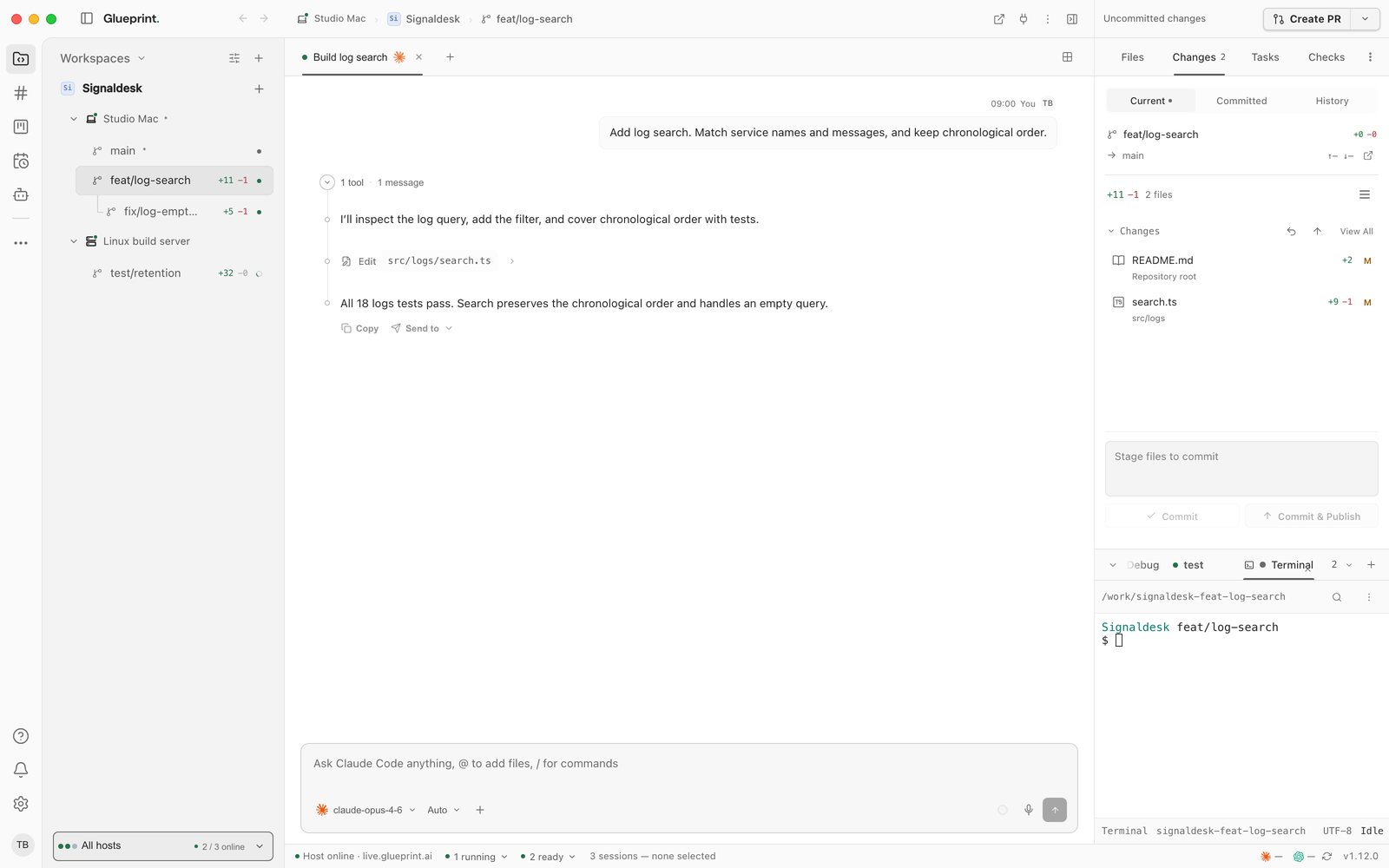
A Glueprint workspace for the feat/log-search branch: the worktrees on the left, grouped under Studio Mac and the Linux build server, the Build log search session in the center, and the Changes panel, commit card, run dock and terminal on the right.
  1. 01Projects, hosts and worktreesEvery project, its worktrees grouped by the machine that holds them, and live change counts.
  2. 02Tabs and panesSessions, terminals, files, a browser or an emulator, as tabs you can split.
  3. 03The sessionMessages, tool calls, file edits and command output in one timeline.
  4. 04The composerChoose the agent and model, attach files, and steer the work while it runs.
  5. 05Files, changes, tasks, checksWhat changed, linked tasks and pull-request checks, beside the conversation.
  6. 06Run dock and terminalThe project's build, test and dev-server commands, with their output.
  7. 07Host and branchAlways see which machine, project and branch the work belongs to.
WS-200Parallel workWorktrees
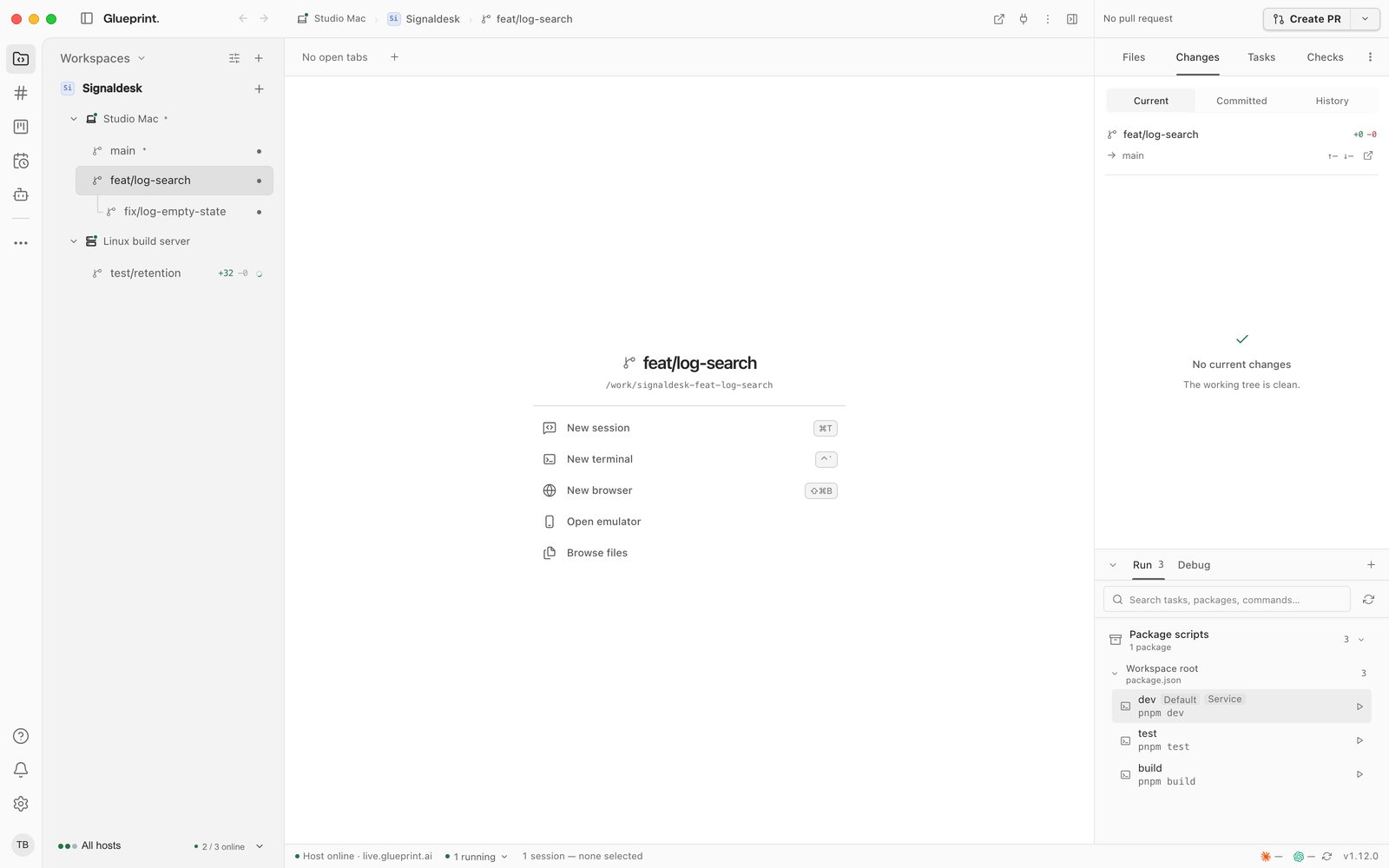
A Glueprint workspace for the feat/log-search worktree. The sidebar lists the project's worktrees under the host that holds each one, Studio Mac or the Linux build server, with their change counts; the center offers a new session, terminal, browser, emulator or file browser.
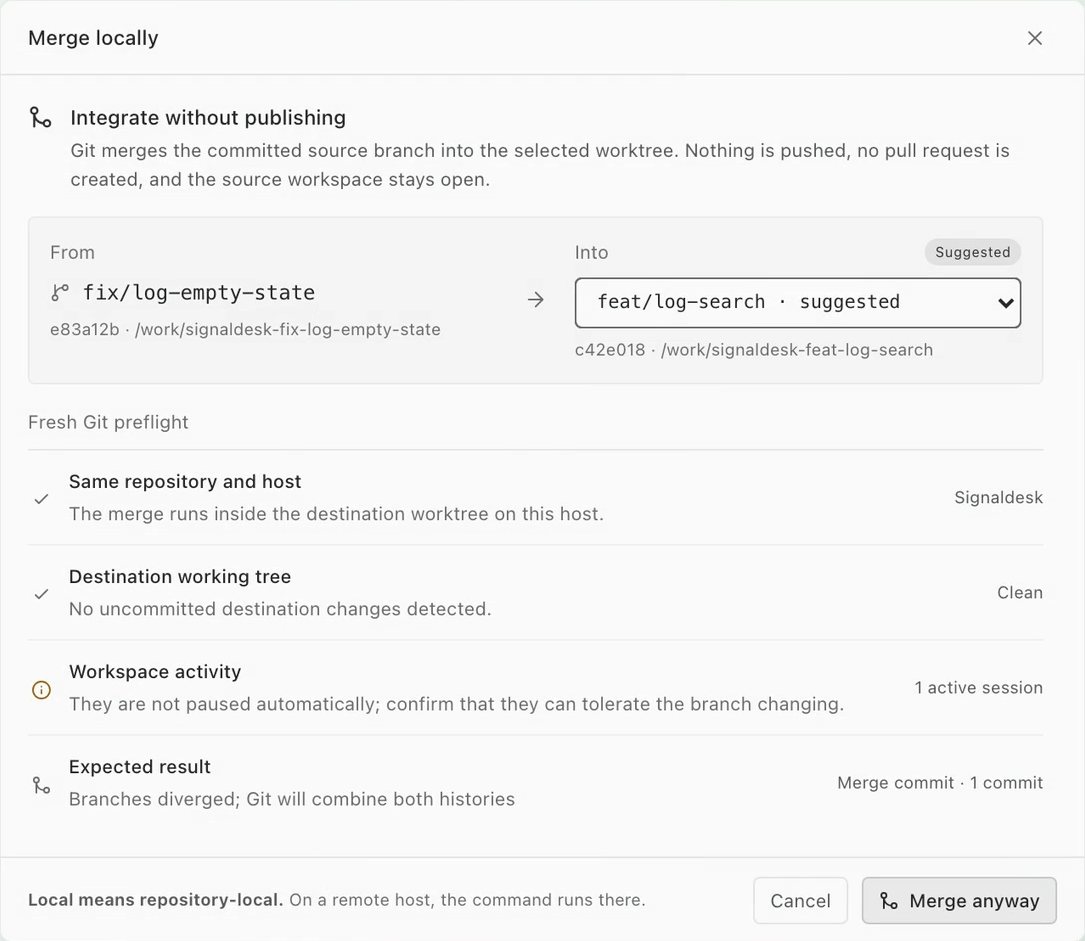
The Merge locally sheet, checking the source and destination worktrees before integrating the branch.

Parallel work.No collisions.

Give each change its own worktree, with its own branch and its own working files. One agent can build a feature while another fixes a bug, and neither touches the other's files.
  • Create a worktree from any branch, right from the sidebar.
  • See every worktree's branch, sync state and change counts at a glance.
  • Compare two worktrees side by side, then merge locally when the work is ready.
WS-300Tabs and panesLayout
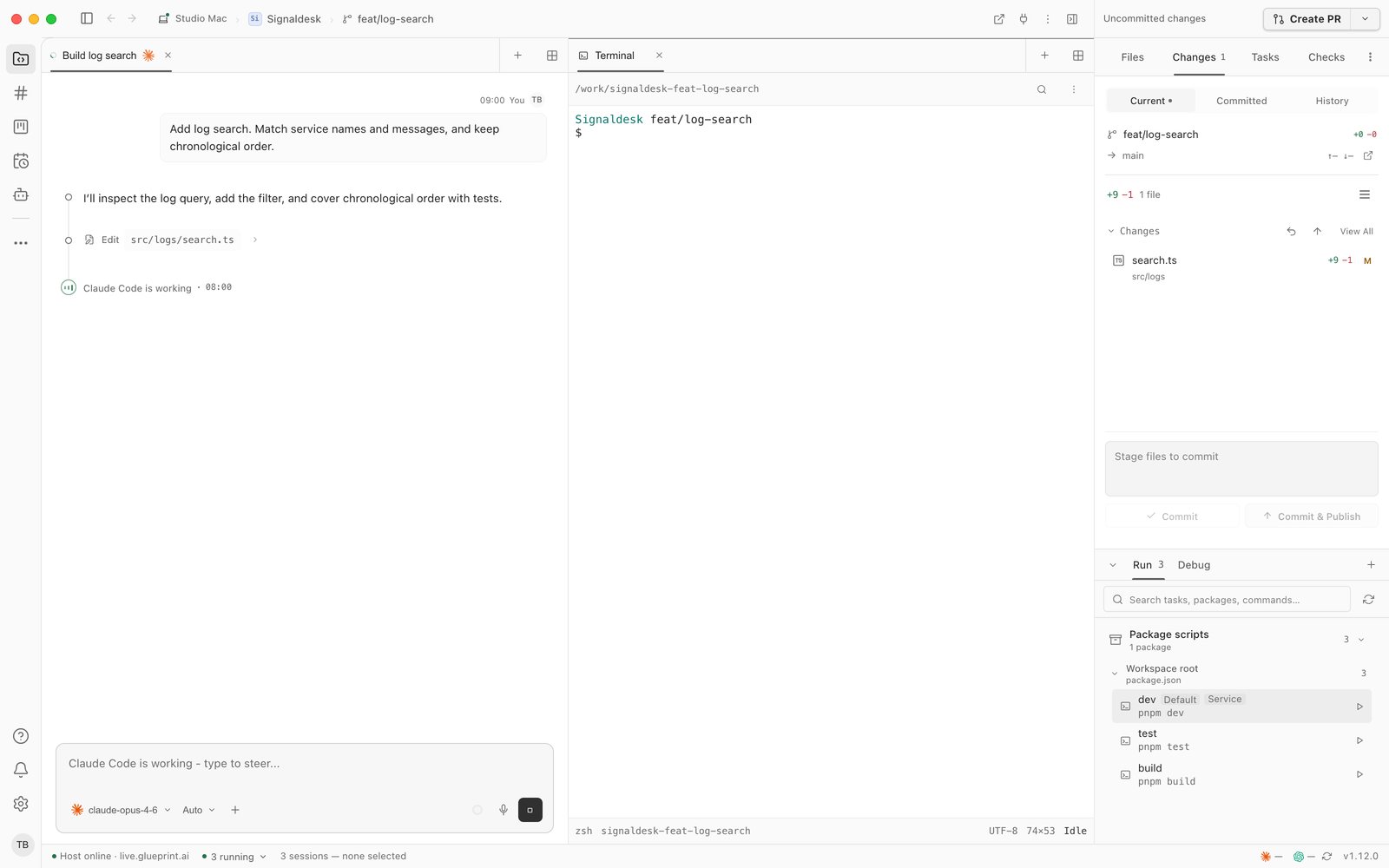
A workspace split into two panes: an agent session on the left and a terminal on the right, with changes and the run dock in the side panel.

Arrange the work.Your way.

A new workspace opens with a launcher for what you need next: a session, a terminal, a browser, an emulator or the files. Open each as a tab and split them side by side, so the agent and its evidence stay in view together.

  • Split any tab to the right or down, and drag tabs between panes.
  • Reopen the tab you just closed, and switch workspaces and tabs from the keyboard.
  • Pop a workspace out into its own window, on another monitor.
WS-400Multiple monitorsDesktop app

Spread out.Use every screen.

Pop a workspace, or a whole project, out into its own window and give it a monitor. The main window keeps the rest of your work, and both stay live.

Main window
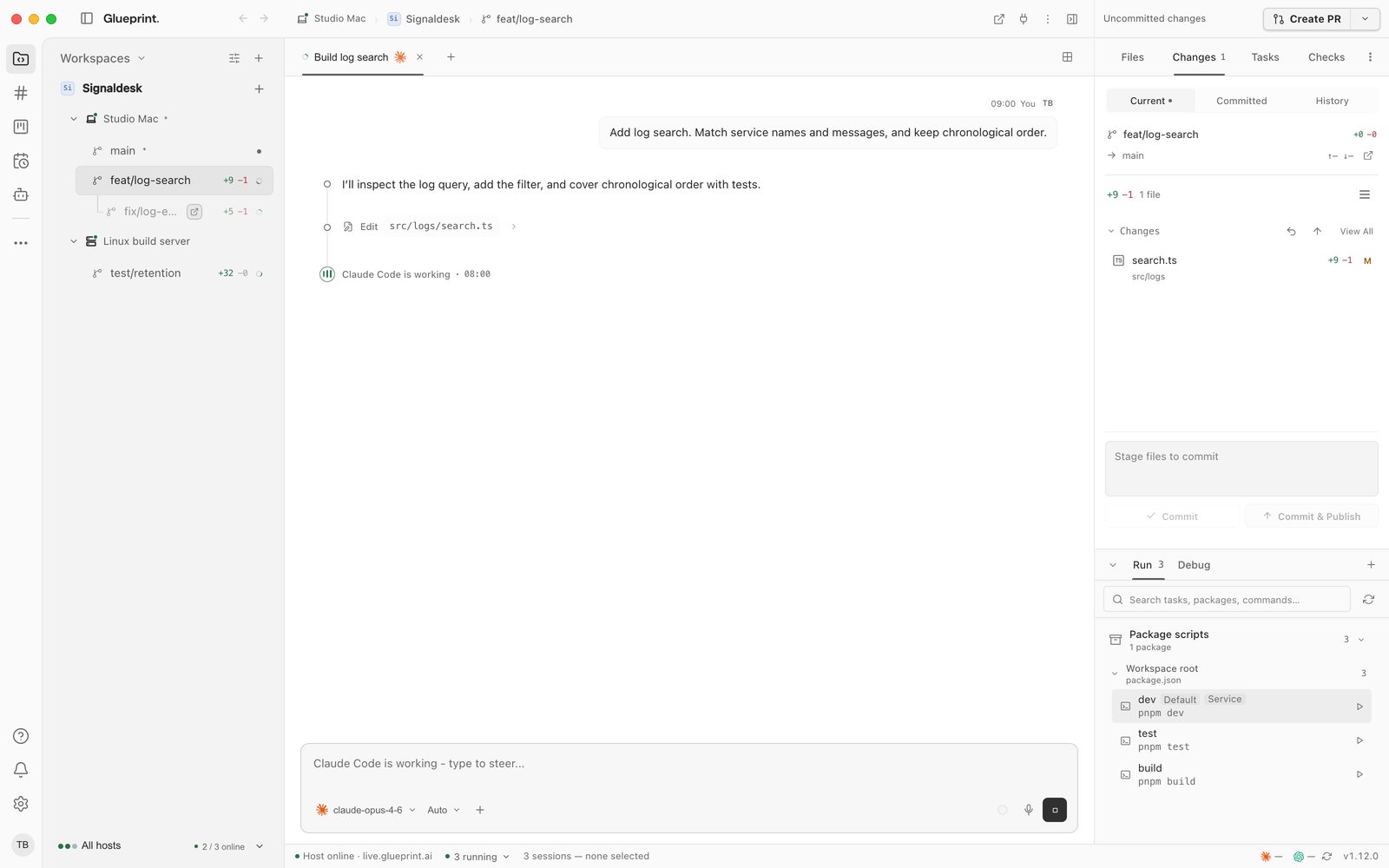
The main Glueprint window on feat/log-search, with Claude Code working in its session. In the sidebar, the fix/log-empty-state workspace is dimmed with an open-window icon because it is open in another window.

fix/log-empty-state

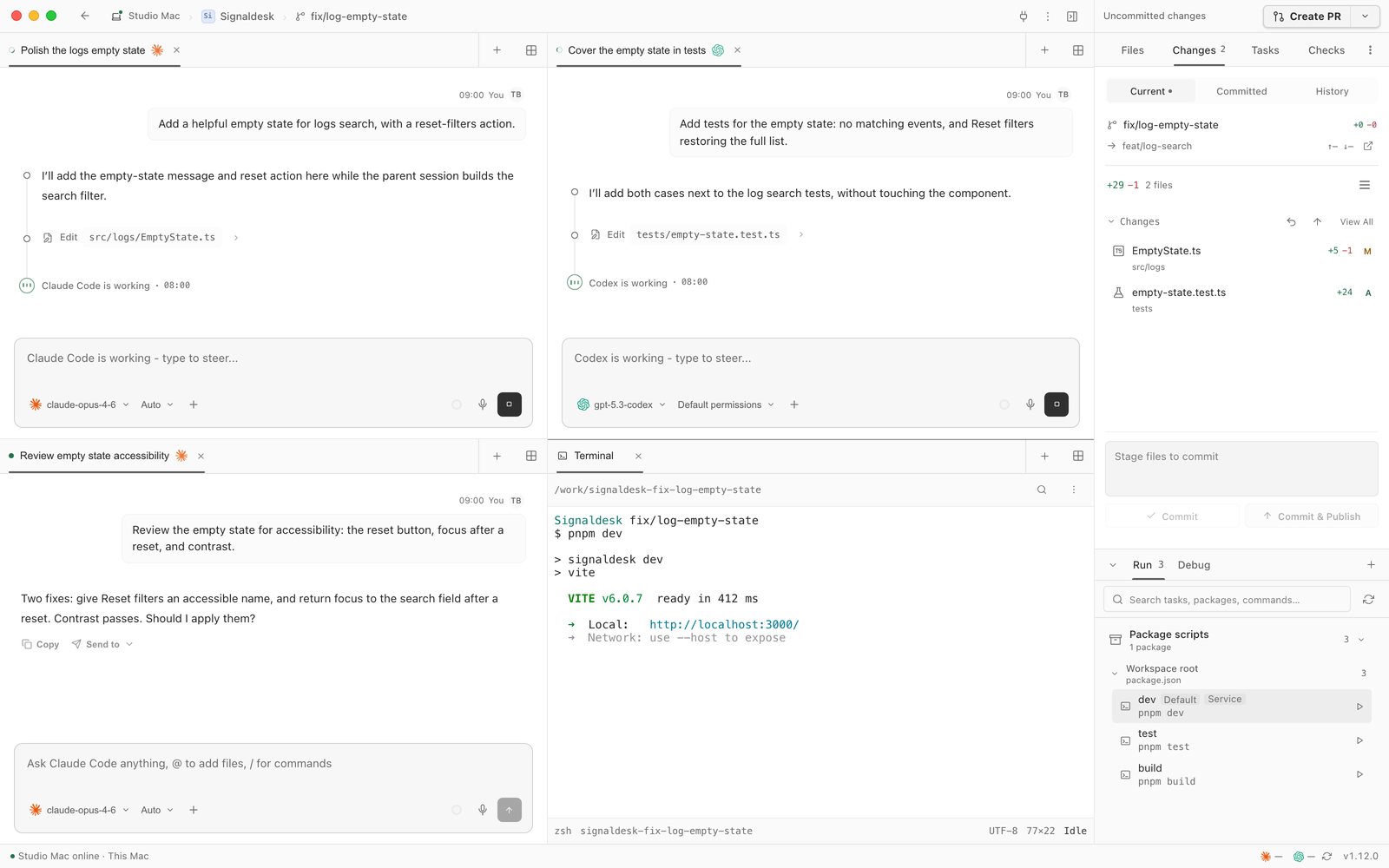
A separate Glueprint window for the fix/log-empty-state workspace, split into a grid of four panes: two Claude Code sessions, a Codex session writing tests, and a terminal running the dev server on localhost:3000, beside the Changes panel listing both edited files and the run dock. An arrow in the title bar returns the workspace to the main window.
Real captures of the desktop app: feat/log-search in the main window, and fix/log-empty-state on its own screen with three agent sessions and a terminal.
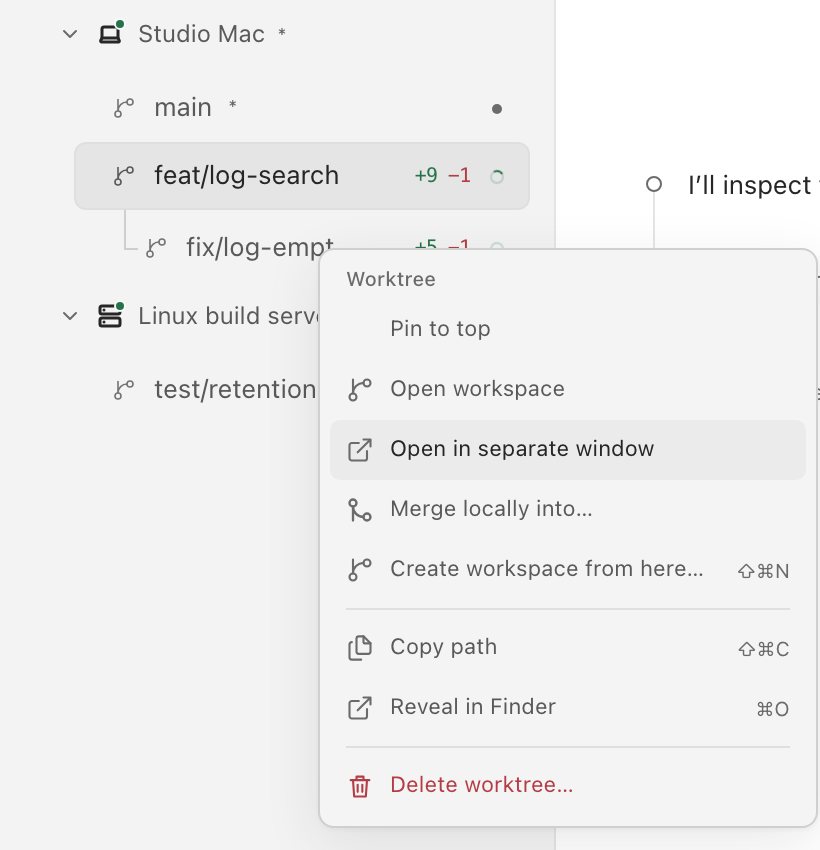
The workspace menu for fix/log-empty-state, with Open in separate window highlighted.
  1. 01Pop it outRight-click a workspace in the sidebar and choose Open in separate window. A whole project pops out the same way, with every workspace in it.
  2. 02Keep working in bothThe main window keeps every other workspace. The popped-out row dims, and clicking it brings that window forward.
  3. 03Bring it backUse the arrow at the top of the window, or just close it, and the workspace returns to the main window with its tabs.
  • Split each window into its own grid of sessions and terminals.
  • Tab, pane, composer and Git shortcuts work in the window you're using.
  • Works on macOS, Windows and Linux.
Read the guide Keyboard shortcuts
WS-500Agent sessionsDirection
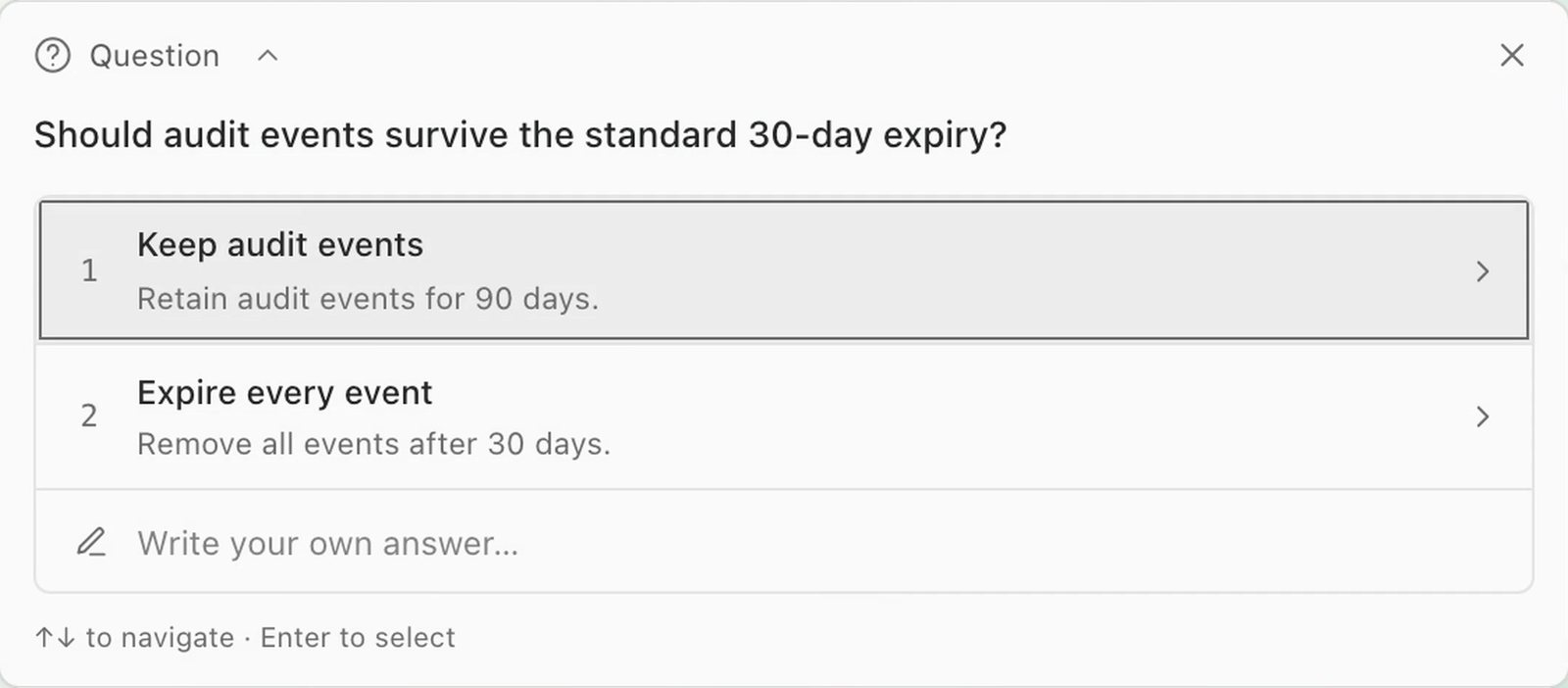
A question card from an agent: should audit events survive the standard 30-day expiry, with two choices and a field to write your own answer.

Direct the agent.Stay in the decision.

Choose the agent and model for each session: Claude Code, Codex, Gemini, or another agent over the Agent Client Protocol. Its questions, approvals and results arrive in the same workspace as the code they describe.
  • Questions pin to the top with their choices, so a decision never scrolls away.
  • Set each session's permission mode, from asking first to accepting edits.
  • Interrupt a turn to redirect it, or steer with a follow-up while it works.
  • Run several sessions in one workspace and follow each one's status.
WS-600Code and reviewEvidence
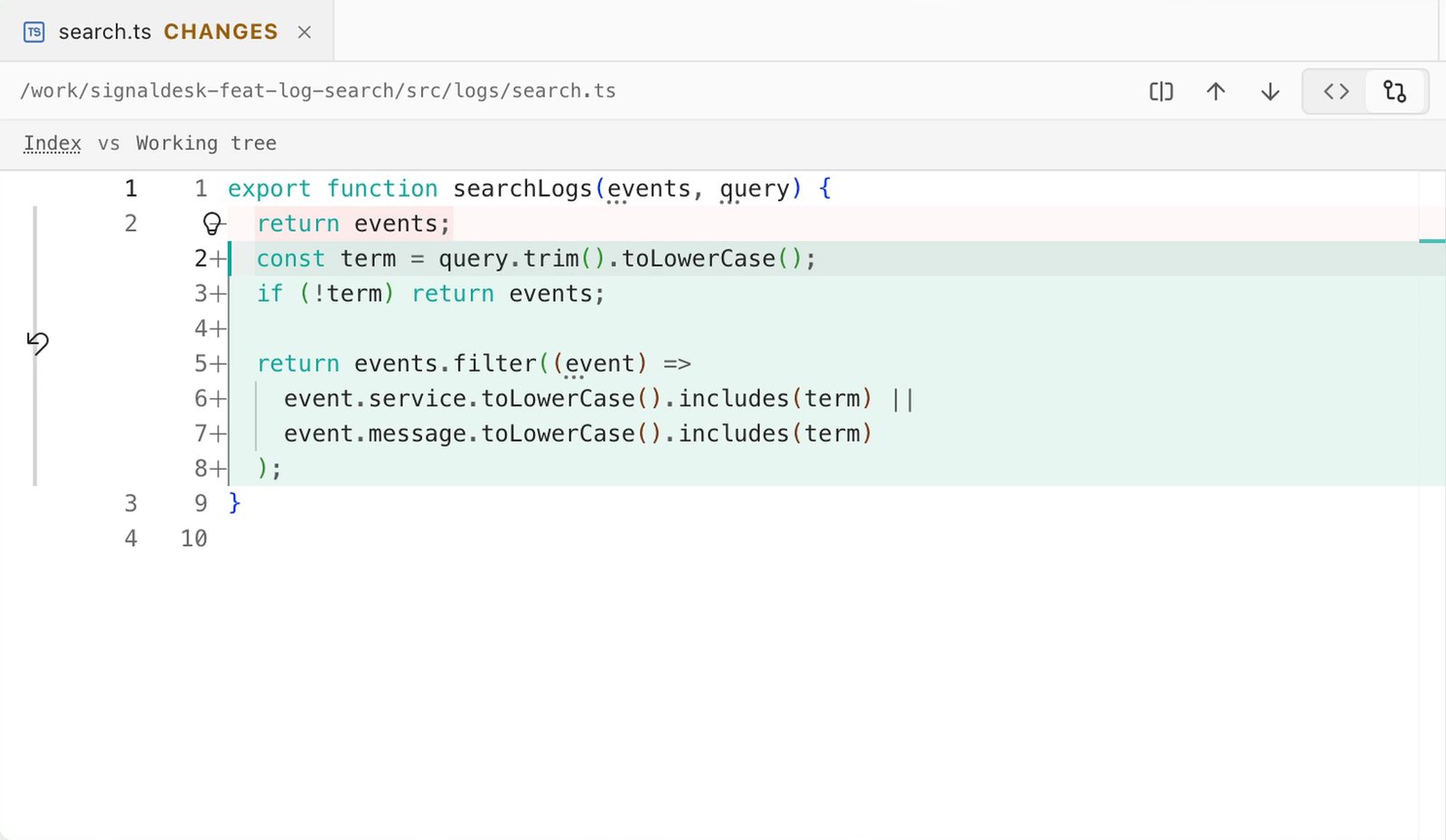
The editor's Changes view for search.ts, with the added filter lines highlighted against the previous version.
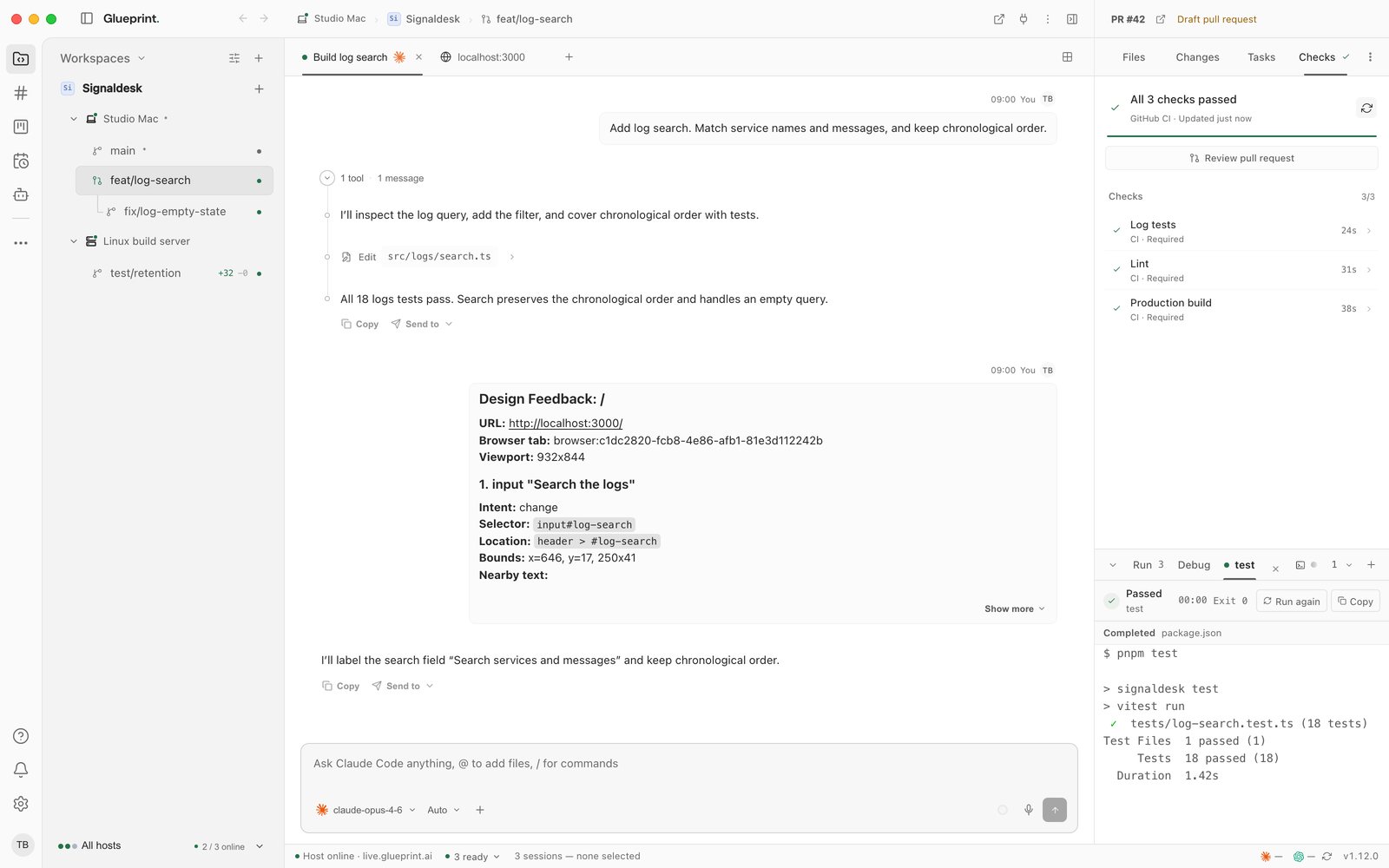
A workspace whose Checks tab shows a draft pull request with all three CI checks passed.

Review before you accept.Ship with evidence.

Open the exact files behind an agent's claim. The built-in editor shows each change against the last commit, with language servers for diagnostics, completion, go-to-definition and rename, and a debugger for when a passing test isn't enough.

  • Stage by file or hunk, commit and push from the Changes panel.
  • Resolve merge and rebase conflicts in a three-pane editor.
  • Open a pull request from the branch and follow its checks beside the session.
  • Breakpoints, call stack and variables for Node.js, Python, Go, .NET and Java.
WS-700Run and previewInside the workspace

Run it. See it.Point at what's wrong.

Reproduce the behavior and collect the evidence without leaving the workspace, on your machine or a host you're connected to.

Watch the preview chapter
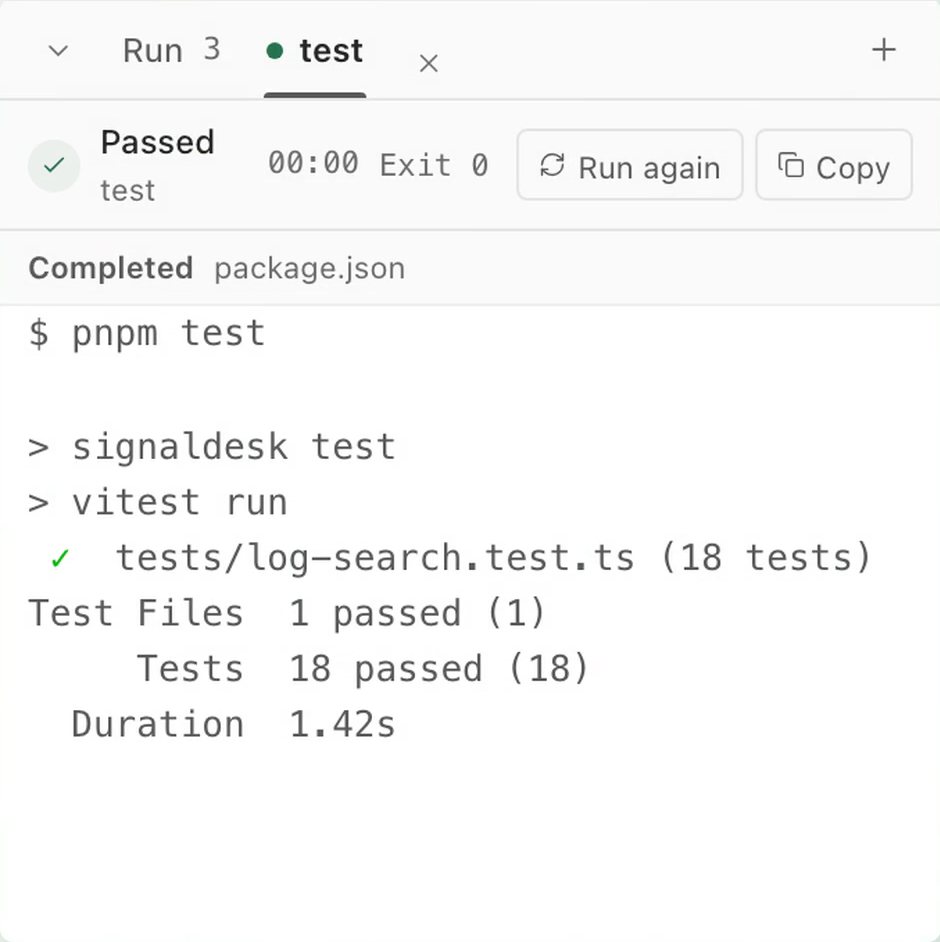
The run dock showing a passed test run: 18 tests passed in 1.42 seconds.

01Run dock

Build, test and dev-server commands discovered from the project and scoped to the worktree. A failed run hands its output to a session.

The run dock
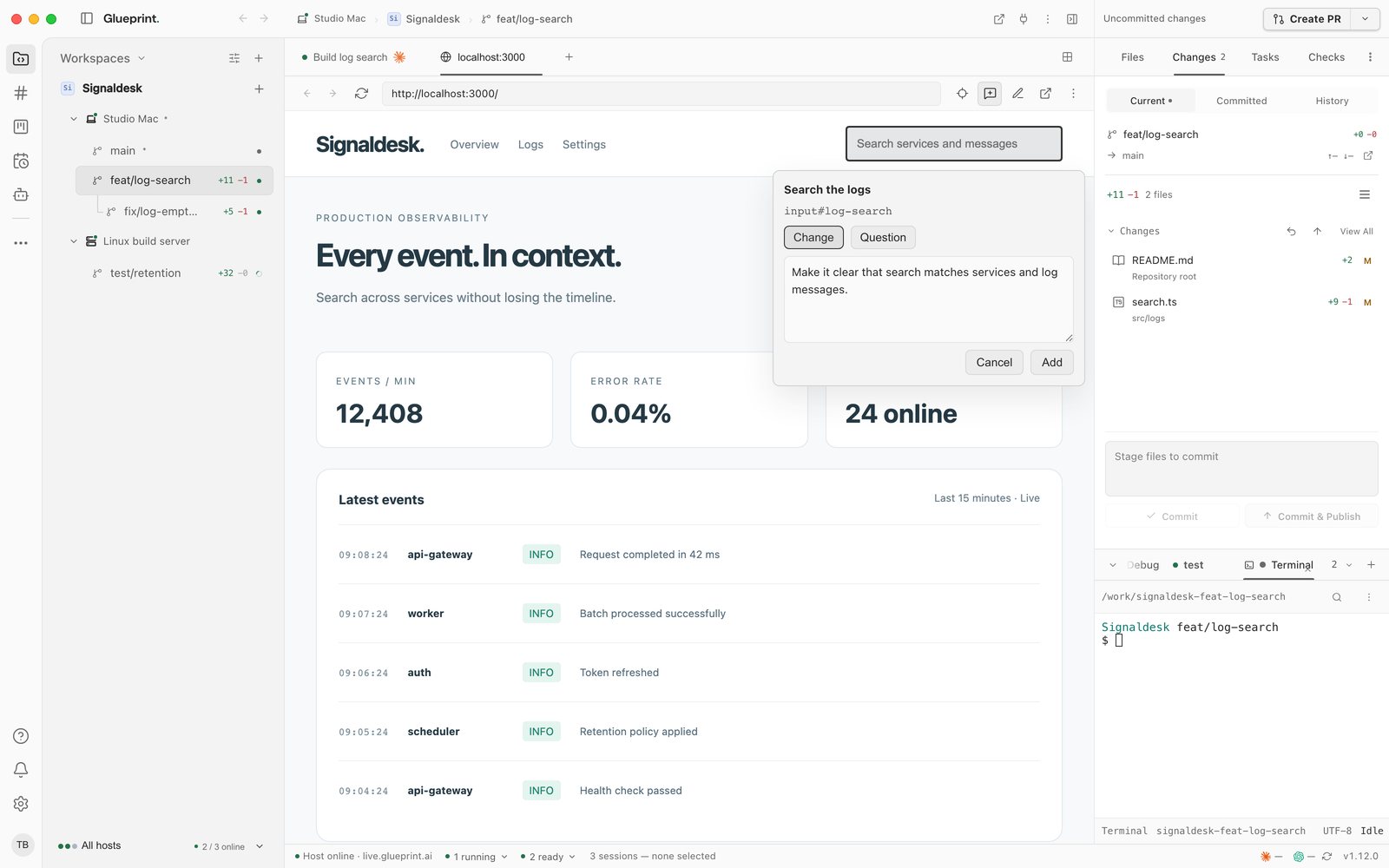
A workspace browser tab showing the app being built, with an annotation on the search field ready to send to a session.

02Browser tab

Open the app you're building in a workspace tab. Point at an element, describe the change, and send it to a session.

Watch it in the tour
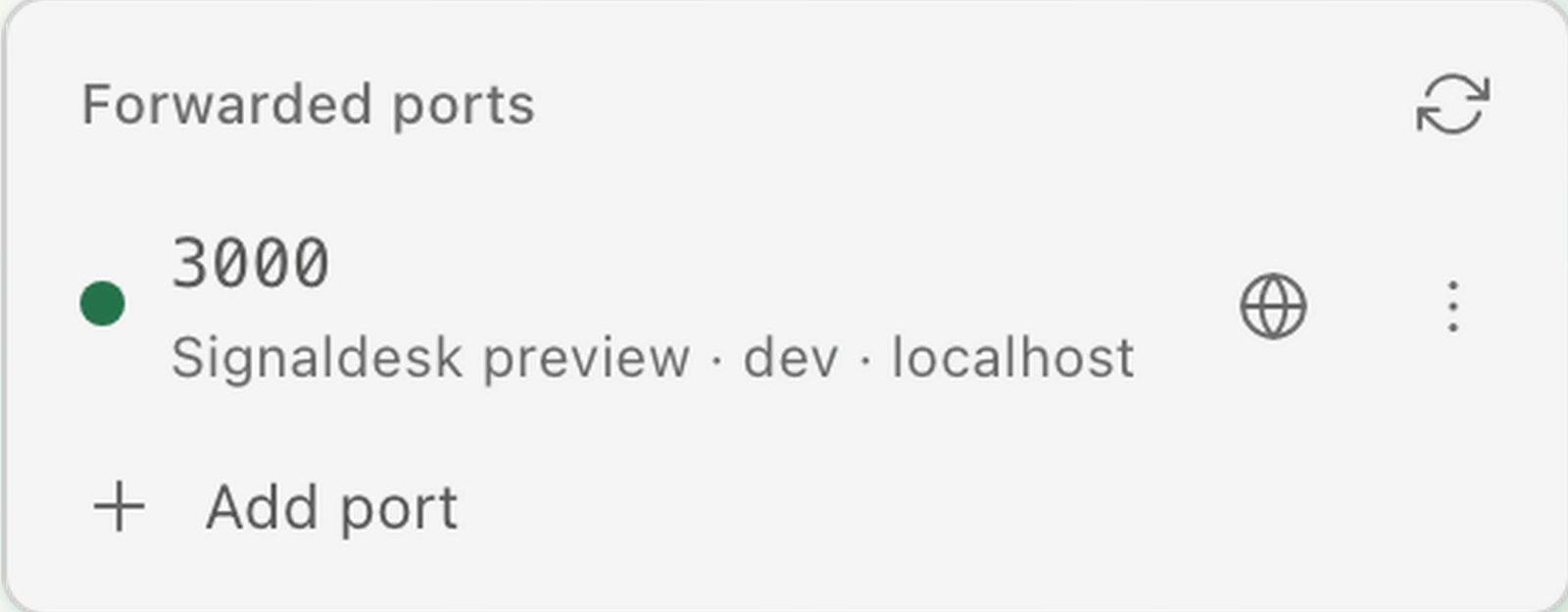
The Forwarded ports list with port 3000, the Signaldesk preview dev server on localhost.

03Ports

Development ports are detected and attributed to the worktree that started them, and can be forwarded from another host.

Port forwarding
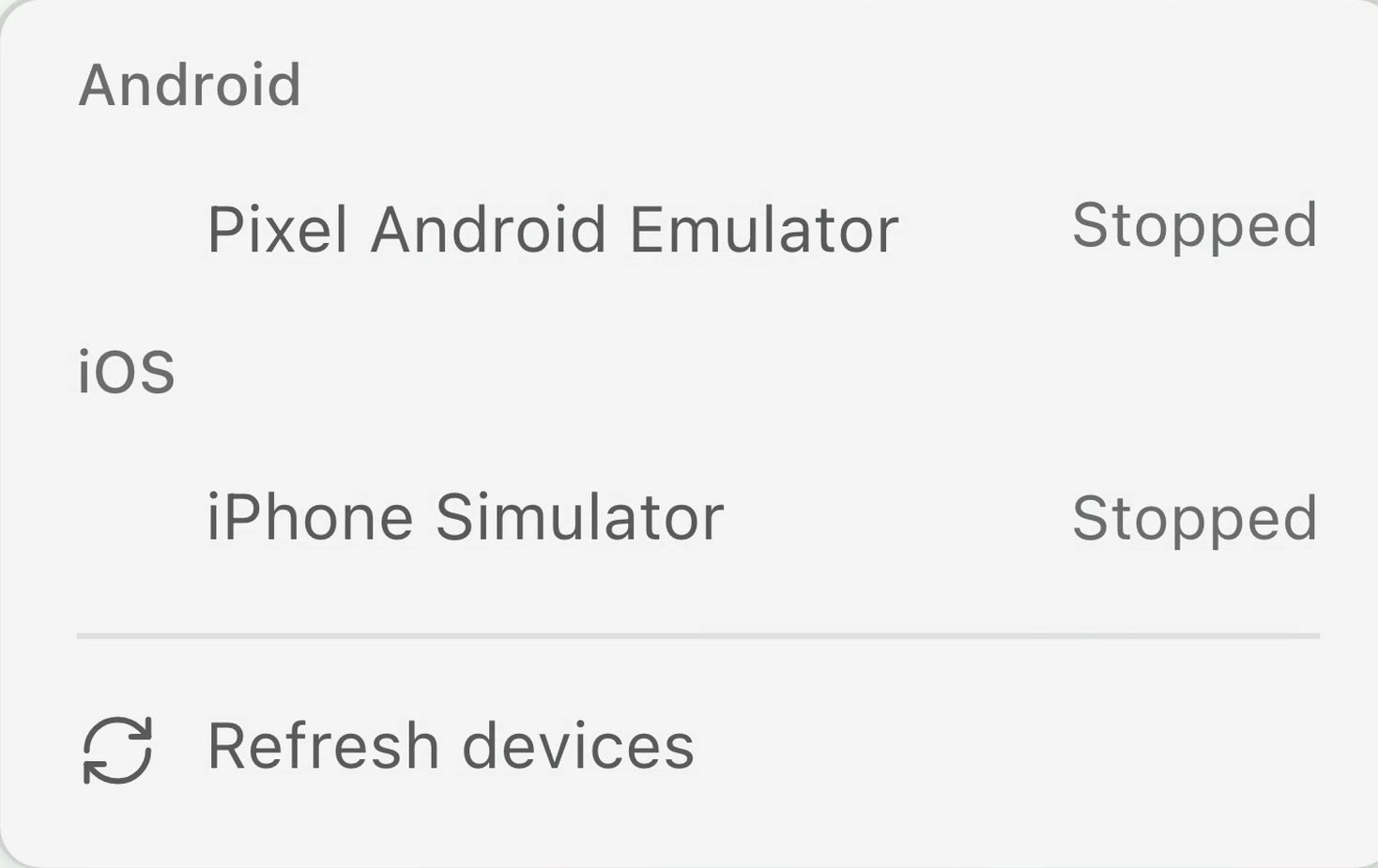
The device picker listing a Pixel Android emulator and an iPhone simulator.

04Mobile emulator

Mirror an Android emulator, or an iOS simulator on macOS, in a tab. An agent can drive the same device.

The Mobile Emulator tab
WS-800Every machine you useHosts
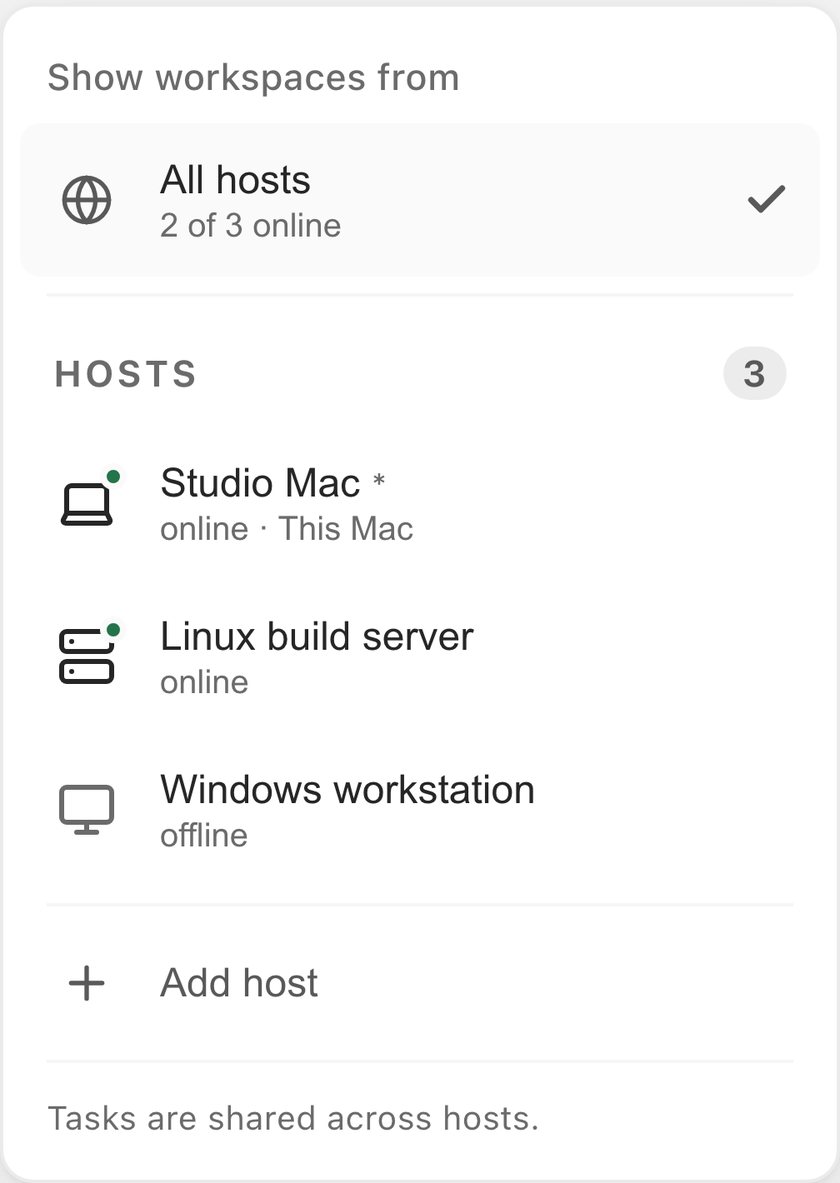
The host picker showing workspaces from all hosts, 2 of 3 online: Studio Mac, marked as this Mac, and a Linux build server online, a Windows workstation offline, and Add host.

Every machine.One sidebar.

Each project lists its workspaces under the machine that holds them, from your Mac to a Linux build server or a Windows workstation, and the work runs on the machine that owns it. Pick it up from the web portal or your phone when you're away from your desk.

  • Every host is its own group in the sidebar. Collapse the ones you are not using; the header always names the machine.
  • The desktop app runs on macOS, Windows and Linux.
  • The CLI daemon gives an always-on server the same engine, without a desktop.
  • Answer a question or review a change from the web portal or the mobile app.

Remote access and the number of connected hosts depend on your plan.

WS-900 Start with one change

Give your next changea place to happen.

Download Glueprint, open a project you know, and start your first workspace. No account needed to begin.